Keep your Duolingo lessons. Use Learnalist alongside them for words and sentences you want to spend more time with, including the ones you meet outside the app.
Perhaps a word catches your attention in a lesson. Later, someone uses a phrase at work that you want to remember too. Both can go into your Learnalist notes, with the meanings or examples you choose. Come back to practise recalling them over time.
Save a word, then get back to your lesson
Here is how Learnalist’s founder keeps risikabel (“risky”) from a Duolingo lesson. Tap a screenshot for a closer look.
-
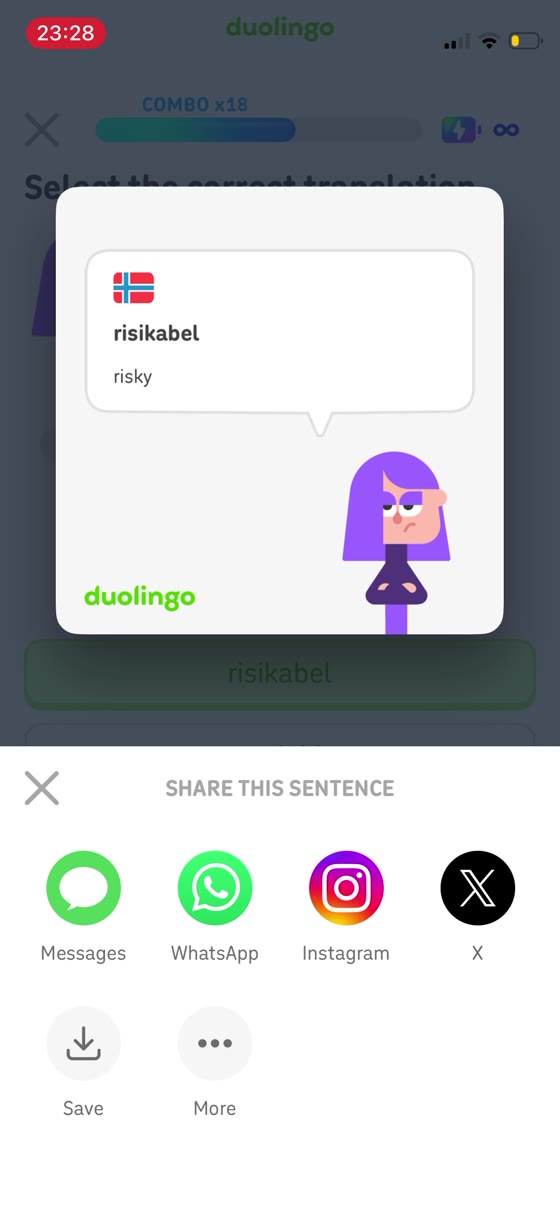 1. I want to practise this word
A word catches your attention. You want to come back to it.
-
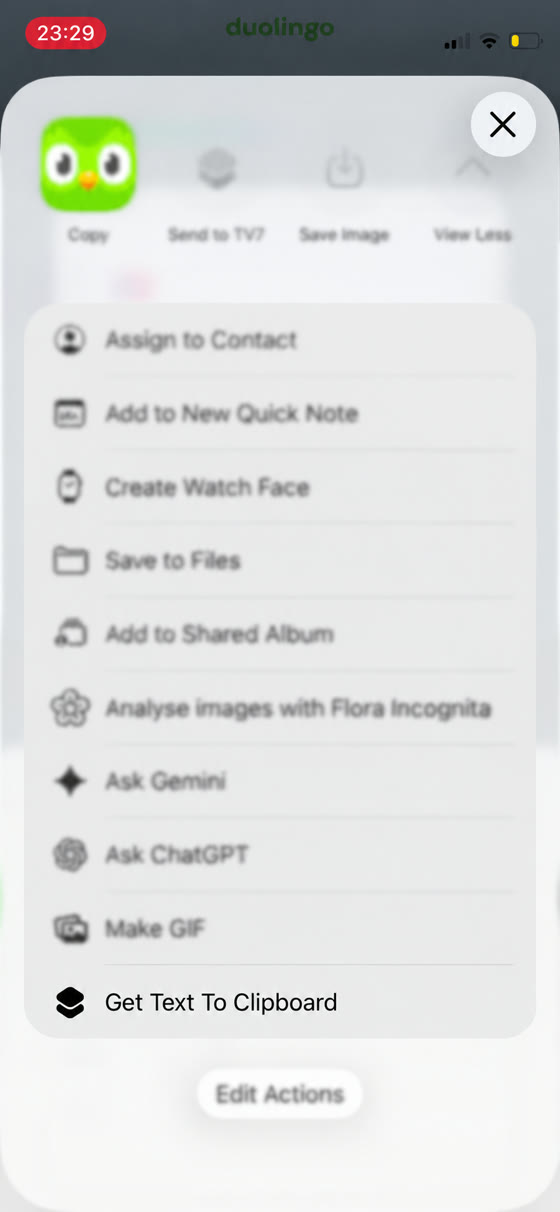 2. Share the word
Share the word image and run the shortcut to extract its text.
-
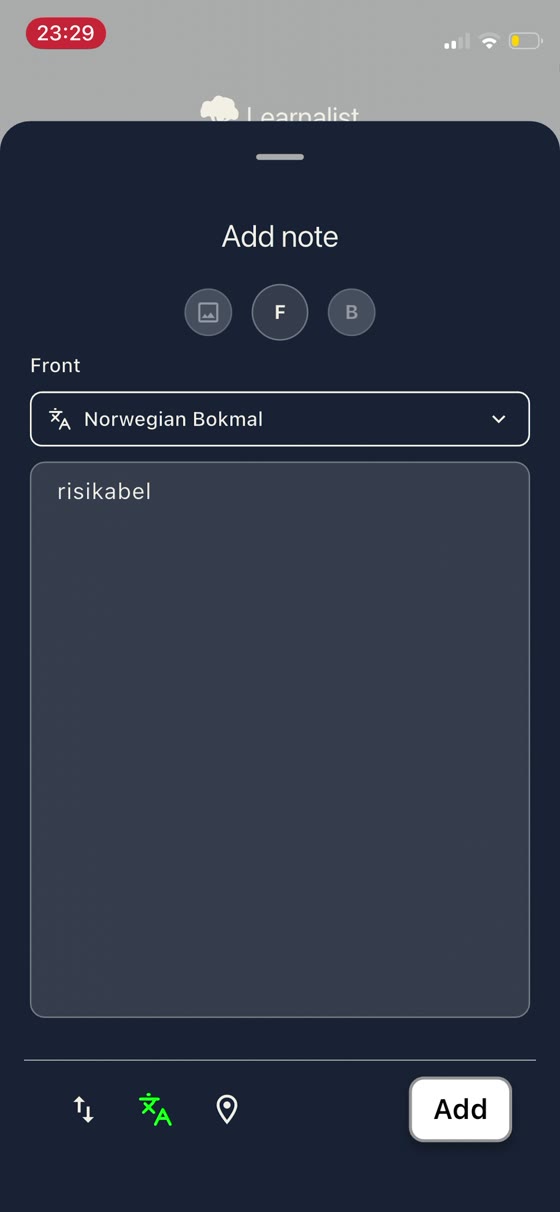 3. Add it to Learnalist
Keep “risikabel” on the front and “risky” on the back. Save, then return to your lesson.
These screenshots show the earlier clipboard shortcut. The current shortcut opens Learnalist’s note editor directly.
Watch the full example: 24 seconds
The note contains one word and its meaning:
| Front | Back |
|---|---|
| risikabel | risky |
You can keep a whole sentence instead when that is what you want to practise. Choose the part that matters to you; you do not need to copy every word from a lesson.
Try it with a word you want to keep
On iPhone or iPad, install or update Learnalist and add the Text To Learnalist shortcut. Share a screenshot or word image with it, check the extracted text, add the meaning on the back and save. You need a Learnalist account to save notes.
The video uses the earlier clipboard shortcut. Text To Learnalist now passes the extracted text straight to Learnalist’s note editor, so you can skip the manual paste. You still check the text and add the meaning before saving.
Already have a word in mind? You can type it into Learnalist on the web now.
Add your own word or sentence.
Your notes can follow your interests
A word from Duolingo can sit alongside a phrase from a conversation, a sentence from a book or vocabulary for a hobby. You choose what goes in and how to explain it to yourself.
If you are learning Norwegian, that might mean keeping a sentence you want to use at work, then adding a knitting term you came across over the weekend. If you are learning another language, start with something you want to understand or say in that language. The Norwegian recording is one example of the workflow.
When you return to Learnalist, try recalling the meaning before revealing the answer. Learnalist schedules your notes for later review. Keep using the language in your lessons, reading and conversations too.
Keep the practice that works for you
Duolingo already provides ways to revisit lessons and practise vocabulary, including flashcard exercises. You may find its practice is enough for what you want to learn.
Learnalist is useful alongside it when you want a collection you choose and can keep adding to from different places. You can continue your course and use Learnalist for that personal material. Saving a note is a starting point; coming back to it and using the language are the next parts.
For words you find on desktop webpages, see the Reader walkthrough. For photos and screenshots, the iPhone Shortcuts guide has the install links and steps.