Look up a word, check its meaning in the sentence, and save what you want to remember. This walkthrough shows the capture steps in Learnalist Reader, then explains how to return for review. Reader is available for Chrome and Firefox on desktop.
The example uses Norwegian with English explanations. You can follow the same process with the page and target languages you are learning.
Watch the one-minute demo
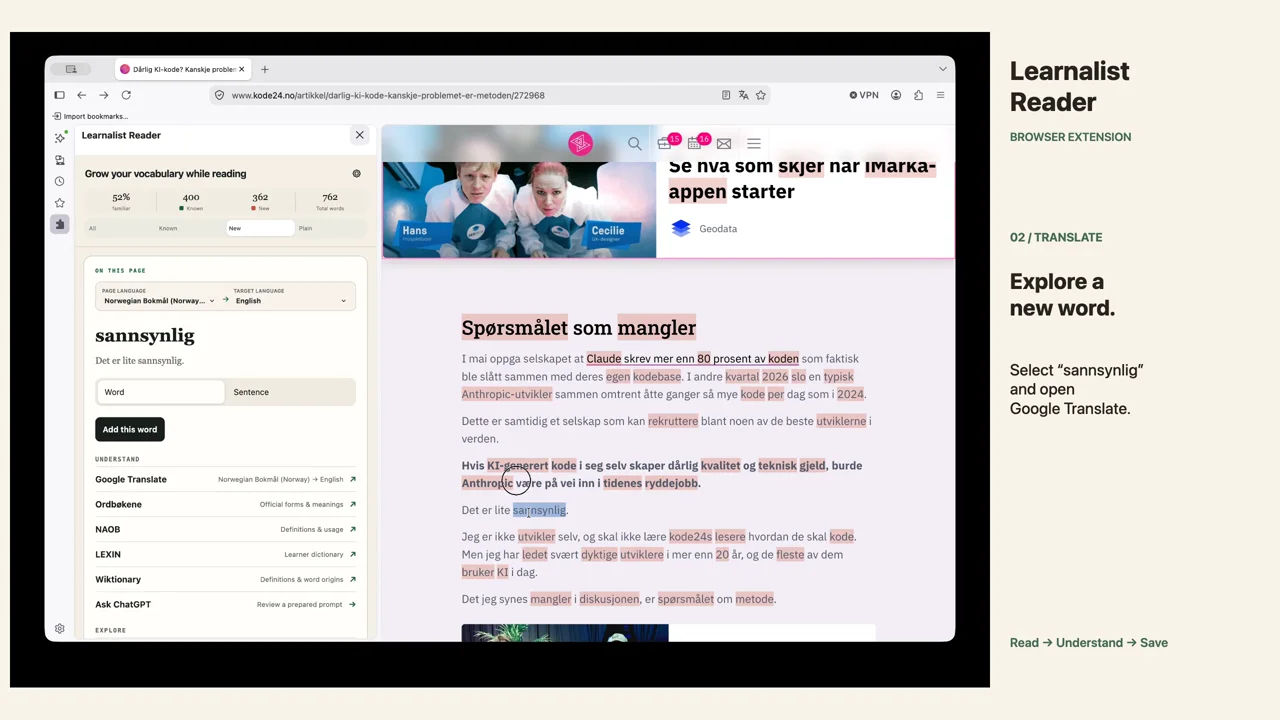
The recording uses sannsynlig (“likely”) from a kode24 article. In Det er lite sannsynlig, lite changes the sense to “It is unlikely”.
1. Open Reader
Install Learnalist Reader, open an ordinary webpage, and open Reader. Choose the page and target languages.
You can explore without signing in. Connect Learnalist to save notes or see matches from your library. The demonstration already has an account connected.
Google Docs and Chrome’s built-in Reading mode are not supported. See Reader support if a page does not work as expected.
2. Check the word and sentence
Move over a word. The New filter highlights words not already in your connected library.
Open Google Translate for the word. Return, switch from Word to Sentence, and open the sentence translation. Compare the meanings.
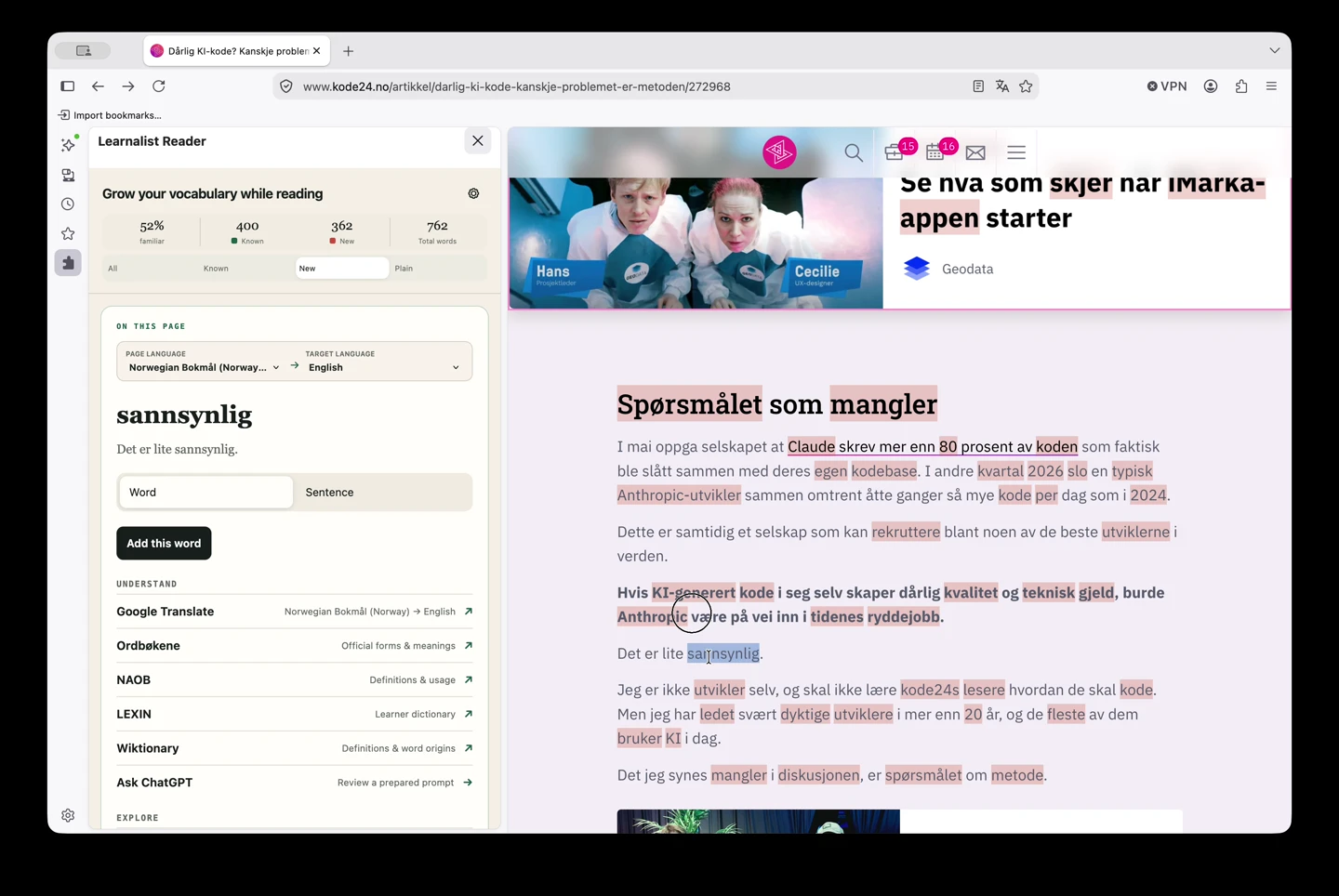
Reference tools may open in another tab. Reader keeps the selected word and context available when you return.
3. Explore an unclear sentence
At 00:16, the demonstration opens Ask ChatGPT, copies the prepared prompt, opens ChatGPT, and pastes it there for a vocabulary and grammar explanation.
Skip this step if the sentence makes sense. Check doubtful explanations against the original wording and a dictionary.
External providers may receive the selected text when you open them. See the privacy policy.
4. Save the word and context
At 00:35, choose Add sentence, then Both. Fill in the word and sentence meanings and select Add to your library. The demonstration confirms two saved notes.
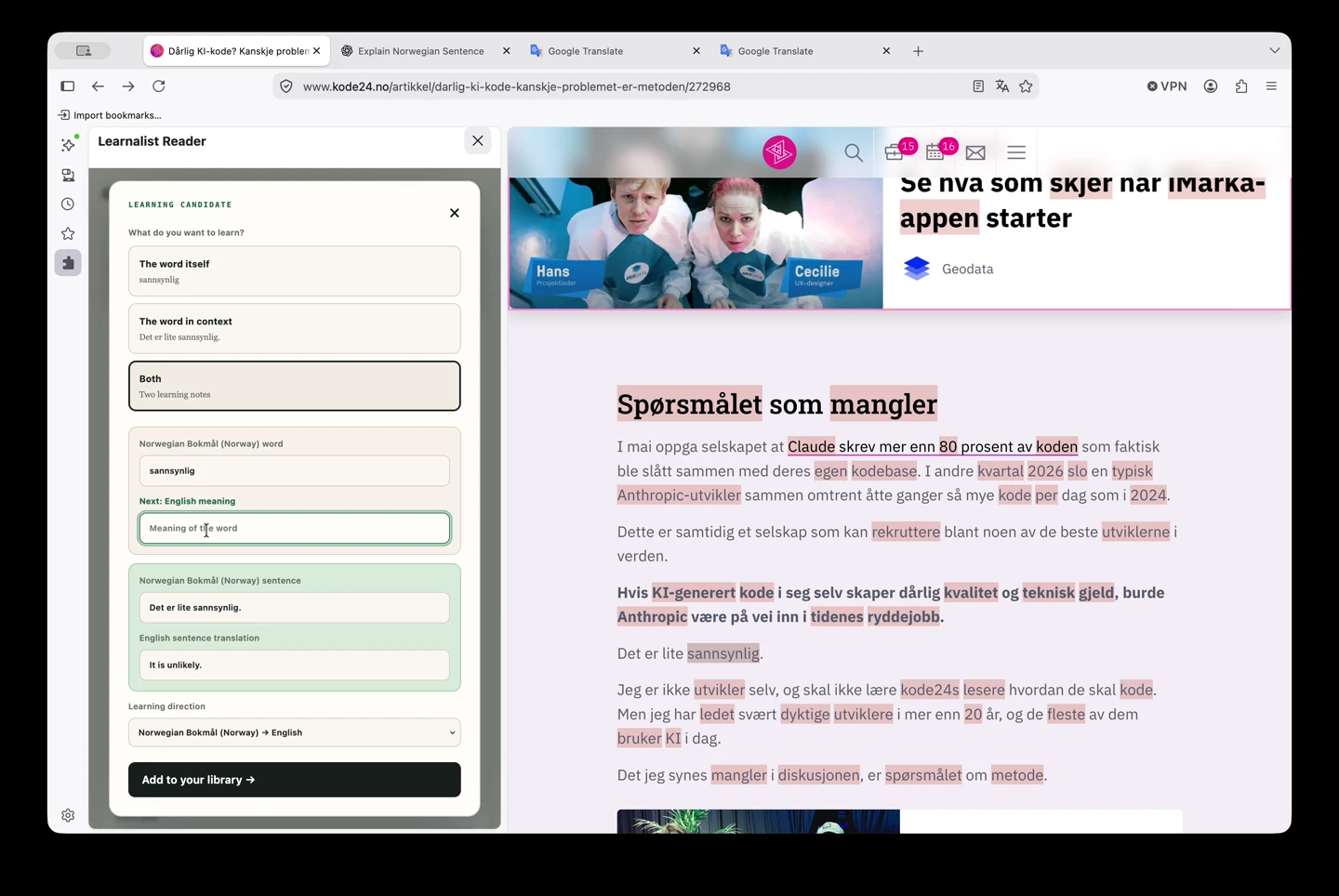
Save both when the sentence adds useful context. You do not need two notes for every lookup; the vocabulary guide helps you choose.
5. Return to your notes later
At 00:50, Known shows the saved word and sentence in green. This means they are in your library, not that you have mastered them.
The video ends here. For your later review:
- Open your Learnalist review list on the web, or open the iPhone or iPad app with the same account.
- When a note is ready, try to recall the meaning before revealing it.
- Choose Sooner if it needs more practice or Later if recall felt comfortable. Learnalist schedules its next appearance.
See how spaced repetition works for the review experience. The steps above are instructions for what to do next; the recording does not demonstrate later recall.
Try the two example cards
You can try the word and sentence here without signing in. Use Flip to reveal each answer, then choose Sooner or Later.
sannsynlig
Show answer
likely
Det er lite sannsynlig.
Show answer
It is unlikely.
See how the word and its sentence became two notes. Learning from a photo or screenshot? Try the iPhone image-to-note shortcut.
Try one useful word
Choose an article and take one word through the steps above. If the page feels too difficult, our foreign-language reading guide can help you choose a smaller task.
Requires Chrome or Firefox on desktop.
Reader is a desktop extension. See how Reader works, then install it in your desktop browser.